






CompareVidia Validates Translations of CAD Models
Ensuring Data Integrity
When a CAD model is exported from its original parent CAD system, and then imported into a different CAD/CAM/CMM system, the translation process of that model may introduce unexpected errors. These unexpected errors may range from not all the surfaces transferring over into the new CAD/CAM/CMM system, or the original model surface edges and faces not joining at the appropriate positions in the derivative model.
This can be completed easily before the derivative model is moved downstream into manufacturing, and the part is created.
The CAD validation process is an important part of the ISO standard quality procedures ensuring CAD data integrity and critical to any supply chain quality procedure. CompareVidia provides an extremely accurate, fast and efficient method to compliment your company's quality process workflows based on the exchange of the CAD data.
Using CompareVidia's well-documented and traceable quality reporting options like xml, text, ppt or pdf, allow all manufacturing team members full access to the validation information for critical decision-making.
When a CAD model is exported from its original parent CAD system, and then imported into a different CAD/CAM/CMM system, the translation process of that model may introduce unexpected errors. These unexpected errors may range from not all the surfaces transferring over into the new CAD/CAM/CMM system, or the original model surface edges and faces not joining at the appropriate positions in the derivative model.
This can be completed easily before the derivative model is moved downstream into manufacturing, and the part is created.
The CAD validation process is an important part of the ISO standard quality procedures ensuring 3D CAD data integrity and critical to any supply chain quality procedure. CompareVidia provides an extremely accurate, fast and efficient method to compliment your company's quality process workflows based on the exchange of the 3D CAD data.
Using CompareVidia's well-documented and traceable quality reporting options like xml, text, ppt or pdf, allow all manufacturing team members full access to the validation information for critical decision-making.
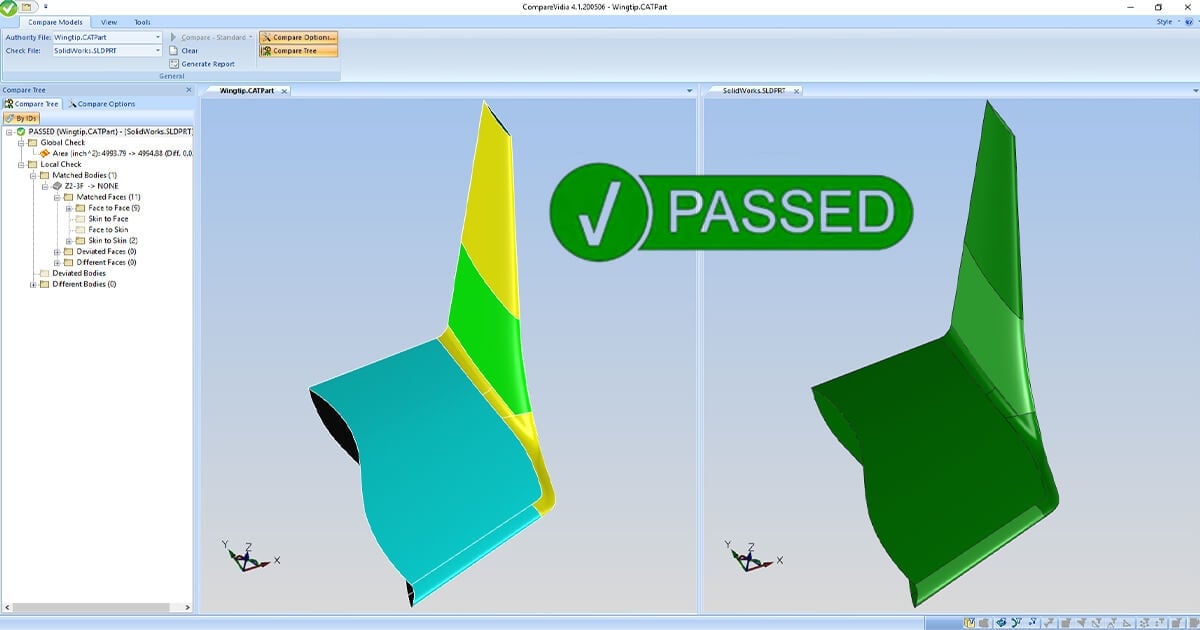
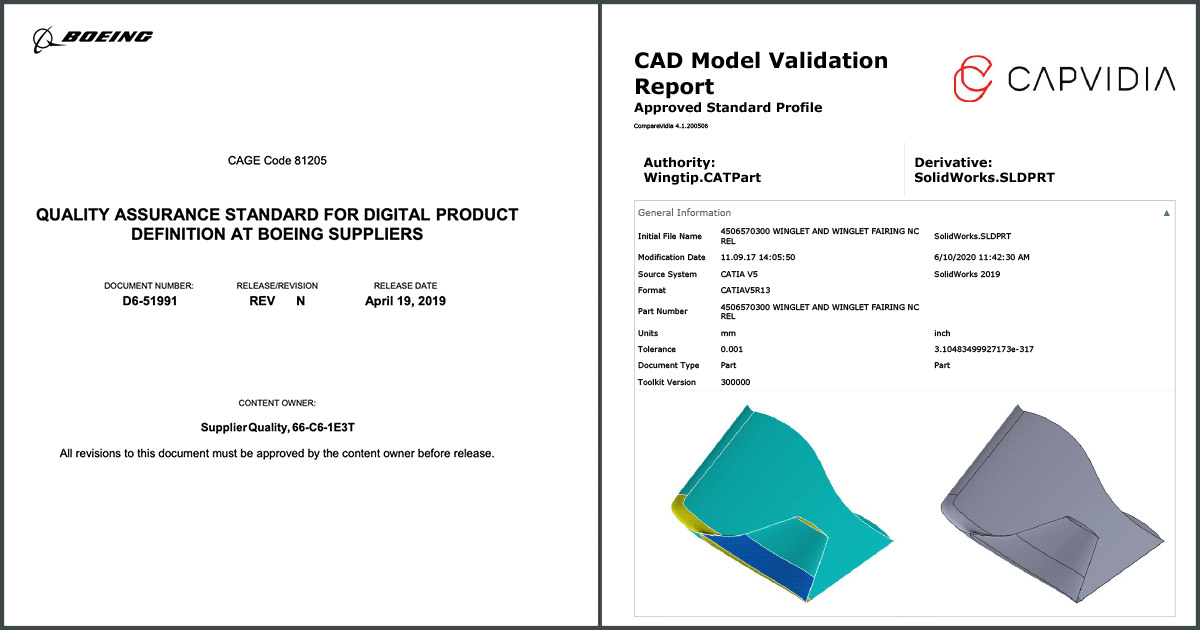
CompareVidia is a specialized application to validate and compare CAD models for translation or design changes. A simple workflow enables the user to load two 3D CAD models and compare them each against one another, using pre-defined tolerance criteria. Geometric and Topological shapes are analyzed for errors or changes and models are classified as either PASSED or FAILED. A quality report can be automatically generated to digitally certify compliance with a set criteria by an OEM, including Boeing's D6-51991 "Quality Assurance Standard for Digital Product Definition" specification.
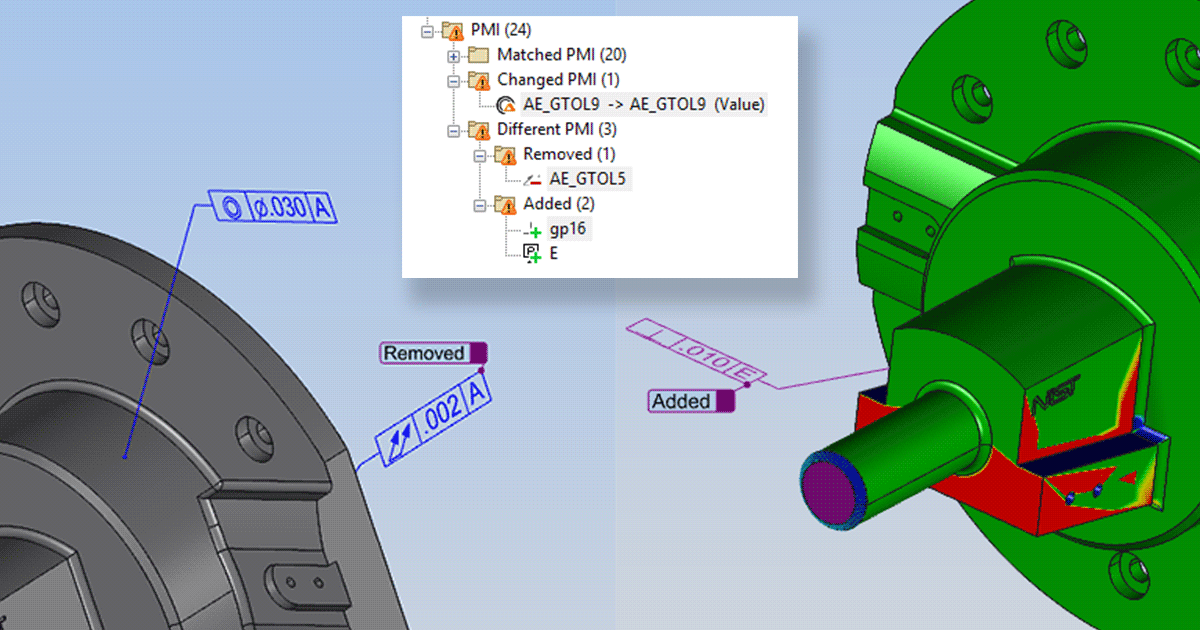
For design revision changes, CompareVidia's TEC module checks for all intended and un-intended design changes in the 3D CAD model. This includes adds, moves or changes to PMI, GD&T or FT&A.
CompareVidia delivers an established benchmark solution to customers looking for efficient and automatic way to validate CAD data model integrity at different stages of digital product life cycle management.
The CompareVidia comparison process is organized in a very intuitive way and strictly driven by user-defined criteria, which specify different levels of comparison.
- Global check compares volume, surface area and center of mass of the models
- Local check finds correspondence between the CAD model face structure and measures distance between them
- Additional checks allows the user to take into account properties of the corresponding entities (such as topology, color, label, layer, etc.)
Tabs-CompareVidia
CompareVidia Provides Precise CAD Data Validation for
Multi-vendor CAD/CAM/Environments
Compare Direction
- Both Directions
Projects validation points in both directions from Authority Model onto Check Model and from Check Model onto Authority Model, if distances between all corresponding points are within the tolerance - validation is passed (models are equal) - Authority to Check
Projects validation points from Authority Model onto Check Model, if distances between all corresponding points are within the tolerance - validation is passed. Note: Check Model may contain extra entities not present in the Authority Model, which does not influence the validation result (validation passes). - Check to Authority
Projects validation points from Check Model onto Authority Model, if distances between all corresponding points are within the tolerance - validation is passed. Note: Authority Model can contain extra entities not present in the Check Model which does not influence the validation result (validation passes). - Ignore Border Deviation
Detects tangential deviations along face's borders and can be used as additional validation criteria. If set to YES it will allow models to PASS even if the border deviation is larger than the set tolerance.
CompareVidia Validates Native-to-Native, Native-to-Neutral &
Neutral-to-Neutral CAD Models
CompareVidia allows the comparison of two CAD models with each other. These CAD models can be native-to-native, native-to-neutral or neutral-to-neutral formats. An Authority CAD model (authority model) and the Check CAD model (derivative model to validate) are simply opened (drag and dropped). The validation process is controlled with user defined (Compare Settings) parameters. The user can select to perform either a Global Check to verify (Volume, Area, and Mass Properties) or a Local Check (geometric & topological).
Global Check parameters such as Volume, Area and Mass Properties are defined as a percentage of maximum acceptable deviation. Tolerance can be defined in inches or millimeters or automatically driven by the units of the Authority CAD model. Local Check is used to verify the model shape using geometric and/or topological parameters and provides a main folder with three sub-folders: Matched Entities, Deviated Entities, and Different Entities.
The validation results are presented in the Compare Tree and graphically on the Check CAD model. The user receives a global indication Passed/Failed (Translation Errors) or No Change/Change (Design Differences) icon further detailed by the information classified into folders of the project tree.
If a CAD model shows an error or design change, a warning icon is attached to all entities that do not comply with the set validation criteria. The user can select each individual problematic entity within the project tree or on the CAD model itself, and further analyze it in the graphical window. Two synchronized graphical windows simplify the investigation of all identified errors/differences. More detailed information including entity count and images with the identified faulty places are also available in a customizable detailed report.
Technically Speaking...
Comparing CAD models with CompareVidia is based on a distance calculation between corresponding model entities (faces, edges) and angle differences between surface normals in the corresponding points. Points are automatically generated based on the 3D model shape complexity. This ensures that the optimal number of points is used (a few points for planar faces and more for complex NURBS). Within the compare process all correspondences between model entities are established and visualized in the compare tree: face-to-face, face-to-skin, skin-to-face and skin-to-skin.
The validation process is controlled by the following parameters:
- Tolerance – defines allowed maximum deviation
- Angle Threshold – defines angle difference between normals in corresponding points
OEM/Supplier CAD Data Validation
CompareVidia can be used to validate supplier data (using different CAD systems) against the original design. Shape and model quality differences are detected automatically given a user defined tolerance. Undocumented design changes and model changes resulting from using different CAD environments or CAD data formats will be automatically detected. The validation procedures are simple to implement at different stages of an engineering process both on the manufacturing and the supplier side. All processes become transparent and traceable.
Manufacturing Validation
CompareVidia automatically validates that a CAD model prepared for manufacturing complies with the original CAD model before the manufacturing process begins. The smallest deviations can be detected to prevent possible manufacturing faults, inconsistencies and reduce potential scrap. Only validated CAD models are passed onto manufacturing. Physical model inspection points from CMM device can also be compared with the original CAD model to validate the final quality of the manufactured detail.
CAD Legacy Migration
Translation of CAD data from a legacy system into your current CAD design system can introduce shape and quality changes. Whatever methodology you use (BREP, feature-based or manual re-mastering) and data formats (native, neutral), CompareVidia can validate the results and help define the optimal migration strategy.
Comparing Physical Measurements
with Authority CAD Model
Collected CMM points are projected on the Authority Model to validate the correctness of physical model for first article inspection.
Out of Orientation Part Alignment
Provides an "automatic or manual part alignment" of CAD models that are in different coordinate systems.
CompareVidia Standalone version:
Includes STEP/IGES formats. Additional read modules sold separately. Choose from CATIA V5, CATIA V4, ProE, UG, SolidWorks, Parasolid, Inventor and STL Read modules.
CompareVidia TEC
Add on to CompareVidia - Validates CAD Model Design, PMI and Engineering Change. Includes STEP/IGES formats. Additional read and PMI modules sold separately. Choose from CATIA V5, CATIA V4, ProE, SolidWorks, Parasolid, UG, Parasolid, Inventor and STL Read modules and CATIA V5 PMI, UG PMI, and ProE PMI.
CompareVidia Batch:
Automates the validation process using batch mode function.
CompareVidia Viewer:
View 3D reports from CompareVidia. The reports are read only and contain full 3D information of the validation result.

